How to Set Up Your School on Chatmadi: A Step-by-Step Guide for Principals
In this article
You have decided to try Chatmadi for your school. Perhaps you read about it, a colleague recommended it, or you found it while searching for school WhatsApp management software India principals use. Whatever brought you here, the next question is practical: how do you actually set it up? This guide walks you through every step of the setup process, from creating your school account to seeing your first AI analysis results. The entire process takes under 30 minutes, and you do not need any technical knowledge. If you can use WhatsApp, you can set up Chatmadi.
What to Expect in Your First 30 Minutes with Chatmadi
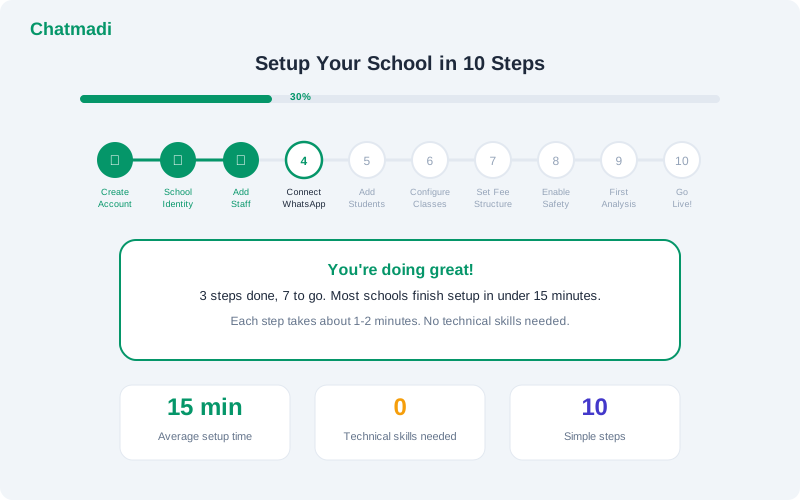
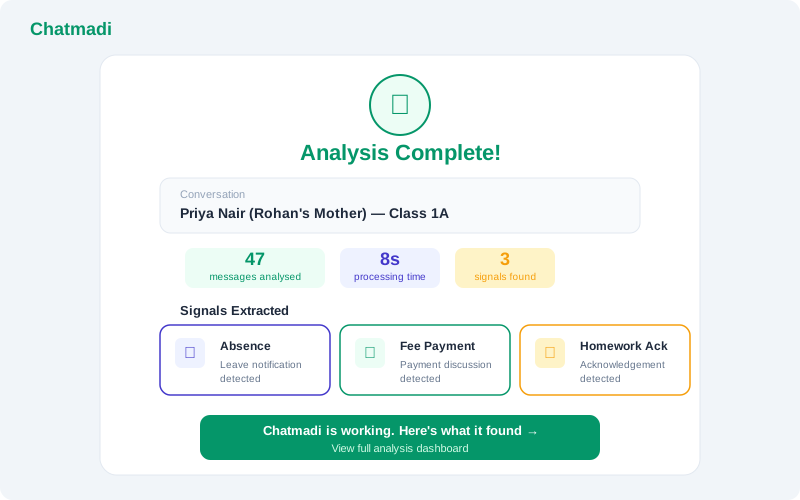
The Chatmadi setup process has 10 checkpoints. You do not need to complete all 10 in one sitting, but most principals finish the essential steps in a single 30-minute session. Here is what you will accomplish. In the first 5 minutes, you will create your school account, set your school identity (name, board, city, academic year), and declare your role (principal, admin, or teacher). In the next 10 minutes, you will create your class structure (add classes and sections), add students to at least one class, and link parent contacts to each student. In the following 10 minutes, you will add staff members, assign class teachers, and optionally set up subjects and syllabus topics. In the final 5 minutes, you will upload your first WhatsApp conversation and watch the AI analyse it in real time, extracting signals like fee payments, absences, and homework acknowledgements. By the end of 30 minutes, you will have a functioning Chatmadi setup with at least one class fully configured and your first conversation analysed. The dashboard will already be showing data.
Step 1-3: Setting Up Your School Identity and Classes
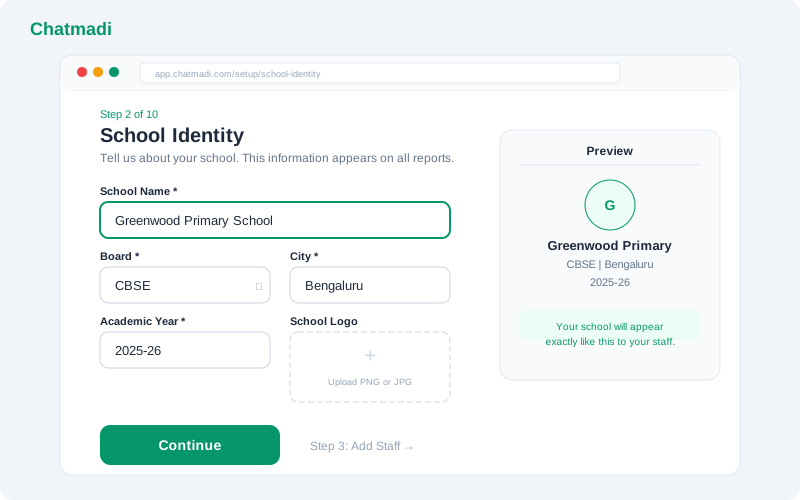
Step one: create your account. Visit chatmadi.com and sign up with your email address. You will receive a verification email. Click the link to activate your account. This takes less than 2 minutes. Step two: set your school identity. After logging in, you are guided to the school setup wizard. Enter your school's name, select your board (CBSE, ICSE, State Board, or Other), enter your city, and set the current academic year. Upload your school logo if you have one in digital format. This information appears on your dashboards and in any messages generated by Chatmadi. Why this matters: the school identity ensures that everything in Chatmadi is branded to your school. When teachers log in, they see their school's name and logo. When the system generates message drafts, they are signed with the correct school name. Step three: create your class structure. Add each class and section your school has. For example: Class 1A, Class 1B, Class 2A, Class 2B, and so on. For a school with 8 classes and no sections, this takes about 2 minutes. For a school with multiple sections per class, add 1 to 2 minutes. Why this matters: the class structure is the foundation of everything in Chatmadi. Students are organised by class. Teachers are assigned to classes. Dashboards are organised by class. Getting this right at the start ensures everything else works smoothly.
School identity setup screen showing fields for school name board city academic year and logo upload
Step 4-7: Adding Students, Staff, and Subjects
Step four: add students. For each class, add the students with their names and parent contact details (parent name and phone number). You can add students one by one through the interface or bulk import them from a CSV or Excel file. The bulk import is recommended for classes with more than 10 students. A template file is available for download. Why this matters: student records are the core of Chatmadi. Every conversation is linked to a student. Every metric (attendance, fees, engagement) is tracked per student. The AI uses student and parent names to match messages to the correct student profile. Step five: add staff members. Add the teachers and administrators who will use Chatmadi. Each staff member needs a name, email address, and role (principal, admin, class teacher, or subject teacher). They will receive an invitation email to create their account. Why this matters: staff accounts determine who sees what. Class teachers see their own class data. Principals see school-wide data. Proper staff setup ensures the right people have access to the right information. Step six: assign class teachers. For each class, designate the class teacher. This links the class teacher's dashboard to their specific class and routes relevant alerts and data to them. Why this matters: the class teacher assignment is what powers the personalised dashboard experience. When Mrs. Anita Rao logs into Chatmadi, she sees her Class 1A dashboard because she is assigned as the class teacher. Step seven: set up subjects and syllabus topics. Optionally, add the subjects taught in each class and the chapter-by-chapter syllabus. This enables syllabus tracking and subject-specific homework analytics. This step can be done later if you want to get started quickly. Why this matters: subject setup enables homework tracking by subject, syllabus completion monitoring, and subject-specific academic analytics. It is optional for basic use but valuable for comprehensive tracking.
How-To: Going from Signup to First Analysis — A 10-Step Walkthrough
Here is the complete 10-checkpoint walkthrough in the order Chatmadi's onboarding wizard presents it. Checkpoint one: school identity (name, board, city, academic year). Checkpoint two: role declaration (principal, admin, or teacher). Checkpoint three: create classes (add all classes and sections). Checkpoint four: add students (names and parent contacts, bulk import recommended). Checkpoint five: add staff (teacher and admin accounts). Checkpoint six: assign class teachers (link each class to its teacher). Checkpoint seven: set up subjects (optional, can be done later). Checkpoint eight: add syllabus topics (optional, can be done later). Checkpoint nine: upload first WhatsApp conversation (export a class group chat from WhatsApp and upload it). Checkpoint ten: review your first analysis (see the AI's extracted signals on your dashboard). The onboarding wizard tracks your progress through these checkpoints and shows a completion percentage. Most schools complete checkpoints one through six in the first session and return to complete seven through ten within the first week. The key moment is checkpoint nine: uploading your first conversation. This is when Chatmadi comes alive. The AI analyses the conversation and populates your dashboard with real data from your actual school communication.
First analysis success screen showing 47 messages analysed with 3 signals extracted for absence fee payment and homework
Your School's First Week with Chatmadi: What to Focus On
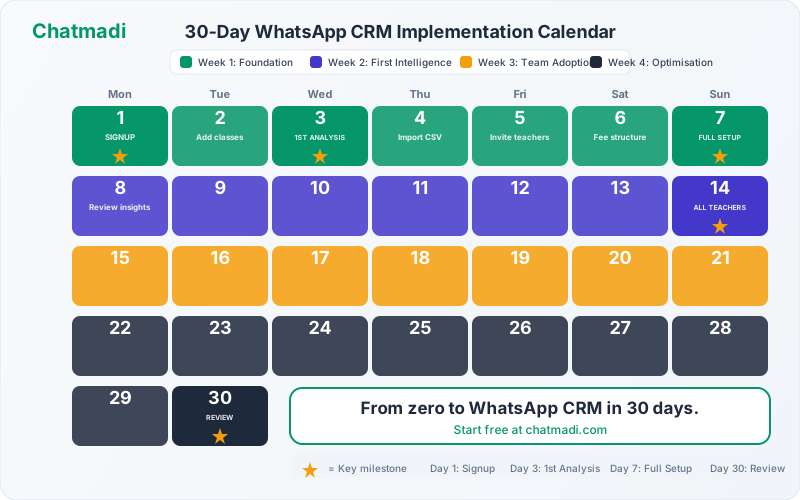
Day one: complete the basic setup (checkpoints one through six). Upload your first conversation from the class you use most actively on WhatsApp. Review the analysis results. Day two: upload conversations from additional classes. Ask class teachers to export and upload their class group conversations. Each teacher should see their dashboard populated with data by the end of the day. Day three: review the dashboards. Check the attendance data detected from conversations. Check the homework acknowledgement rates. Note any surprises: parents you thought were engaged but are not, or parents you did not expect to see high engagement from. Day four: try the fee detection. If any parent messages in the uploaded conversations mention fee payments, check whether Chatmadi detected them. The fee queue shows all detected payment mentions awaiting verification. Day five: explore the analytics. Look at the engagement scores, attendance patterns, and homework trends. These may have limited data after just a few days but will give you a preview of what the dashboards show with a full month of data. End of week one: assess your experience. Are the AI analyses accurate? Are the dashboards useful? Is the system saving time? Use the 30-day trial framework to score your first week. By the end of week one, every class teacher should have uploaded at least one conversation, reviewed their dashboard, and understood the basic workflow: upload conversations, check dashboard, take action on alerts and insights.
Frequently Asked Questions
Do I need to be technical to set up Chatmadi?
No. The setup wizard guides you through every step. If you can use WhatsApp and fill in a web form, you can set up Chatmadi. No IT knowledge is required.
How do I export a WhatsApp conversation for upload?
In WhatsApp, open the class group conversation. Tap the three-dot menu (Android) or the group name (iPhone). Select "Export chat." Choose "Without media" for faster export. Save the file and upload it to Chatmadi.
Can I set up Chatmadi from my phone?
Yes. Chatmadi's interface works on mobile browsers. However, the initial setup is faster on a laptop or tablet, especially if you are importing student data from a spreadsheet.
What if I make a mistake during setup?
Everything in Chatmadi can be edited after initial setup. If you enter a wrong class name, student name, or parent contact, you can correct it at any time from the settings page.
Can I do the setup in stages rather than all at once?
Yes. The onboarding wizard saves your progress. You can complete three checkpoints today and return tomorrow to complete the rest. There is no time limit on the setup process.
---
30 minutes from now, your school could be running on Chatmadi. Start free at chatmadi.com
Tagsschool WhatsApp management software Indiahow to use WhatsApp for school communicationschool productivity tools India 2025digital transformation school IndiaChatmadi
C
Chatmadi Team
School Communication Intelligence
The Chatmadi team writes about AI-powered parent communication, school management best practices, and WhatsApp intelligence for Indian schools. Built by Eduloom Technologies OPC Pvt Ltd, Mysore.